
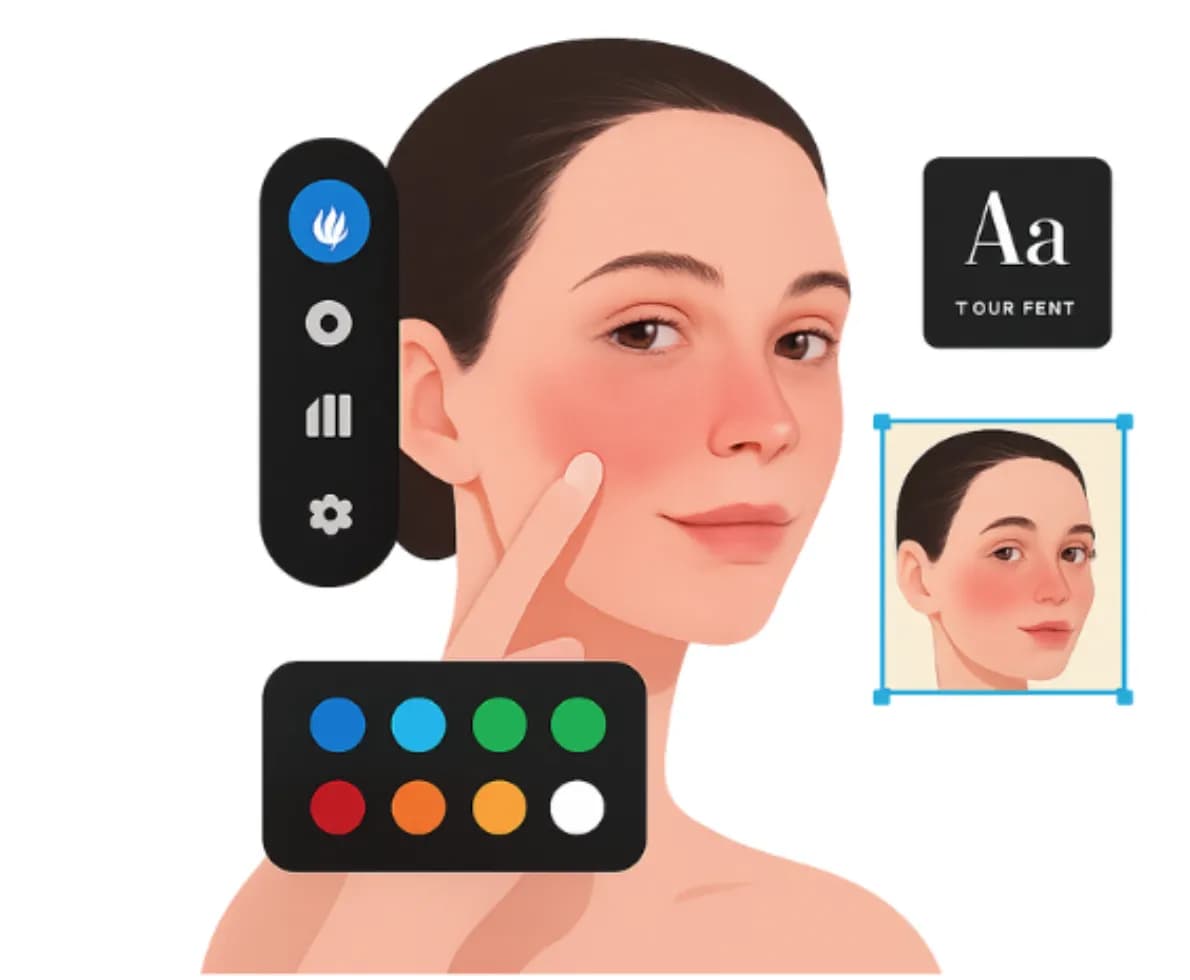
Getting Started With the Editor
Accessing Your Website Editor
Login to your dashboard:
- Go to matjarx.com
- Click "Login"
- Enter your email and password
- Click "Edit Website"
The editor opens in a new window
Website Editor Basics
Interface Overview
Left Sidebar:
- Pages list
- Add new page
- Settings
- Help
Main Canvas:
- Your website preview
- Drag-and-drop elements
- Text and image editing
Right Panel:
- Element settings
- Design options
- Advanced settings
Saving Your Changes
Save automatically - Changes save as you work (most things)
For major changes:
- Click "Save" button
- Wait for confirmation
- Check preview
Never lose work - Auto-save activates every 30 seconds
Editing Content
Changing Text
To edit text on your site:
- Click the text element
- Type your new content
- Format as needed (bold, italic, etc.)
- Click outside to finish
- Changes save automatically
Editing Images
To replace an image:
- Click the image
- Click "Change Image"
- Upload from your computer
- Click "Select"
- Image updates immediately
To resize an image:
- Click the image
- Drag corner handles to resize
- Keep aspect ratio to avoid distortion
Adding New Content
To add text:
- Click "Add Element"
- Choose "Text"
- Type your content
- Style as needed
To add images:
- Click "Add Element"
- Choose "Image"
- Upload from computer
- Position and resize
To add buttons:
- Click "Add Element"
- Choose "Button"
- Enter button text
- Set button link/action
Working With Pages
Adding a New Page
To create a new page:
- Click "+" next to Pages list
- Enter page name
- Choose template or start blank
- Page is created
- Edit content as needed
Good page names:
- Services
- About Us
- Contact
- Blog
- FAQ
- Testimonials
Editing Page Settings
To edit page details:
- Right-click page name
- Click "Settings"
- Edit page title
- Edit page URL (slug)
- Set SEO details
- Save
Organizing Pages
To reorder pages:
- Drag page name in sidebar
- Drop in new position
- Order updates immediately
This affects navigation order
Hiding/Deleting Pages
To hide a page:
- Right-click page
- Click "Hide from Navigation"
- Page is hidden from menu (but still accessible)
To delete a page:
- Right-click page
- Click "Delete"
- Confirm deletion
- Page is permanently removed
Caution: Deleting is permanent. Pages are not recoverable.
Design & Customization
Changing Colors
To change site colors:
- Go to "Settings" → "Design"
- Click "Colors"
- Choose primary color
- Choose accent color
- All pages update automatically
Changing Fonts
To change typography:
- Go to "Settings" → "Design"
- Click "Fonts"
- Choose header font
- Choose body font
- Preview updates
Using Themes
To change theme:
- Go to "Settings" → "Theme"
- Browse available themes
- Click "Preview"
- Click "Apply" to use
- Your site updates immediately
All your content transfers to the new theme
Custom Design
For advanced customization:
- Boost Plan: Limited custom options
- Growth Plan: More customization
- Platinum/Custom: Full customization
Contact support for advanced design changes.
SEO & Content Optimization
Setting Page SEO
To optimize for search engines:
- Edit a page
- Click "SEO Settings"
- Enter meta title (60 chars)
- Enter meta description (155 chars)
- Add keywords (optional)
- Save
Optimizing Content
Best practices:
- Use keywords naturally in content
- Write clear, descriptive headings
- Include images with alt text
- Link to related pages
- Write substantial content (300+ words)
Adding Meta Information
Meta Title: What appears in Google search results Meta Description: Preview text under title in results Keywords: (Optional) Helps with search optimization
Publishing Your Website
Going Live
Before publishing:
- Review all pages
- Check links work
- Verify images display
- Test mobile view
- Proofread content
To publish:
- Click "Publish"
- Review changes
- Confirm publication
- Website updates immediately
Changes go live instantly
Scheduling Posts
To schedule content:
- Create your content
- Click "Schedule"
- Choose date and time
- Content publishes automatically
Great for:
- Blog posts
- Promotions
- Announcements
- Seasonal content
Advanced Features
Contact Forms
To add a contact form:
- Click "Add Element"
- Choose "Contact Form"
- Customize fields
- Set email destination
- Submissions sent to your email
Embedding Content
To embed videos, maps, etc:
- Click "Add Element"
- Choose "Embed"
- Paste embed code
- Customize size
- Save
Supports YouTube, Maps, social posts, etc.
E-Commerce Features (Platinum Only)
Product management:
- Click "Add Product"
- Enter product details
- Set price
- Add images
- Configure variants
- Save
Order management:
- Track incoming orders
- Update order status
- Send order notifications
- Generate invoices
Mobile Preview
Testing Mobile View
To see mobile version:
- Click "Mobile" button (right side)
- Preview shows mobile display
- Adjust design for mobile if needed
- Toggle back to desktop
Important: Test all pages on mobile
Mobile Optimization
Ensure:
- Text is readable
- Buttons are large enough to tap
- Images display properly
- No horizontal scrolling
- Forms are easy to use
Troubleshooting
Changes Not Saving
If changes don't save:
- Check internet connection
- Refresh page
- Try saving again
- Contact support if issue persists
Images Not Loading
If images don't display:
- Check file size (< 5MB)
- Try different format (JPG vs PNG)
- Re-upload image
- Clear browser cache
Layout Issues
If design looks broken:
- Refresh the page
- Try different browser
- Clear browser cache
- Contact support
Keyboard Shortcuts
Quick Editing Tips
Ctrl/Cmd + Z: Undo last change Ctrl/Cmd + S: Save changes Ctrl/Cmd + A: Select all Delete: Remove selected element
Common Tasks
Blog Post Publishing
- Click "Add New Page"
- Choose "Blog Post" template
- Enter title
- Write content
- Add featured image
- Set publish date
- Click "Publish"
Adding a Testimonial
- Go to Testimonials page
- Click "Add Testimonial"
- Enter customer name
- Enter testimonial text
- Add photo (optional)
- Set rating
- Save
Updating Business Hours
- Go to Contact page
- Find hours section
- Click to edit
- Update hours
- Save
Adding a Photo Gallery
- Click "Add Element"
- Choose "Gallery"
- Upload photos
- Arrange order
- Set descriptions
- Save
Getting Help
Built-In Help
- Help button in editor (top right)
- Video tutorials for common tasks
- Tooltips hover over elements
Support
For editing help:
- WhatsApp: +92 303 372 0953
- Email: office@matjarx.com
- Phone: +92 303 372 0953
We can help with:
- Complex edits
- Design changes
- Content updates
- Troubleshooting